Write for the ear
Put the most important information first. Replace dense punctuation with short sentences, and write out any abbreviation that a voice might read incorrectly.
Audio workflow
Start with a short script, listen for mistakes, and check the available export format. Ttsmp3 helps you think through the path from written text to a usable voice recording.
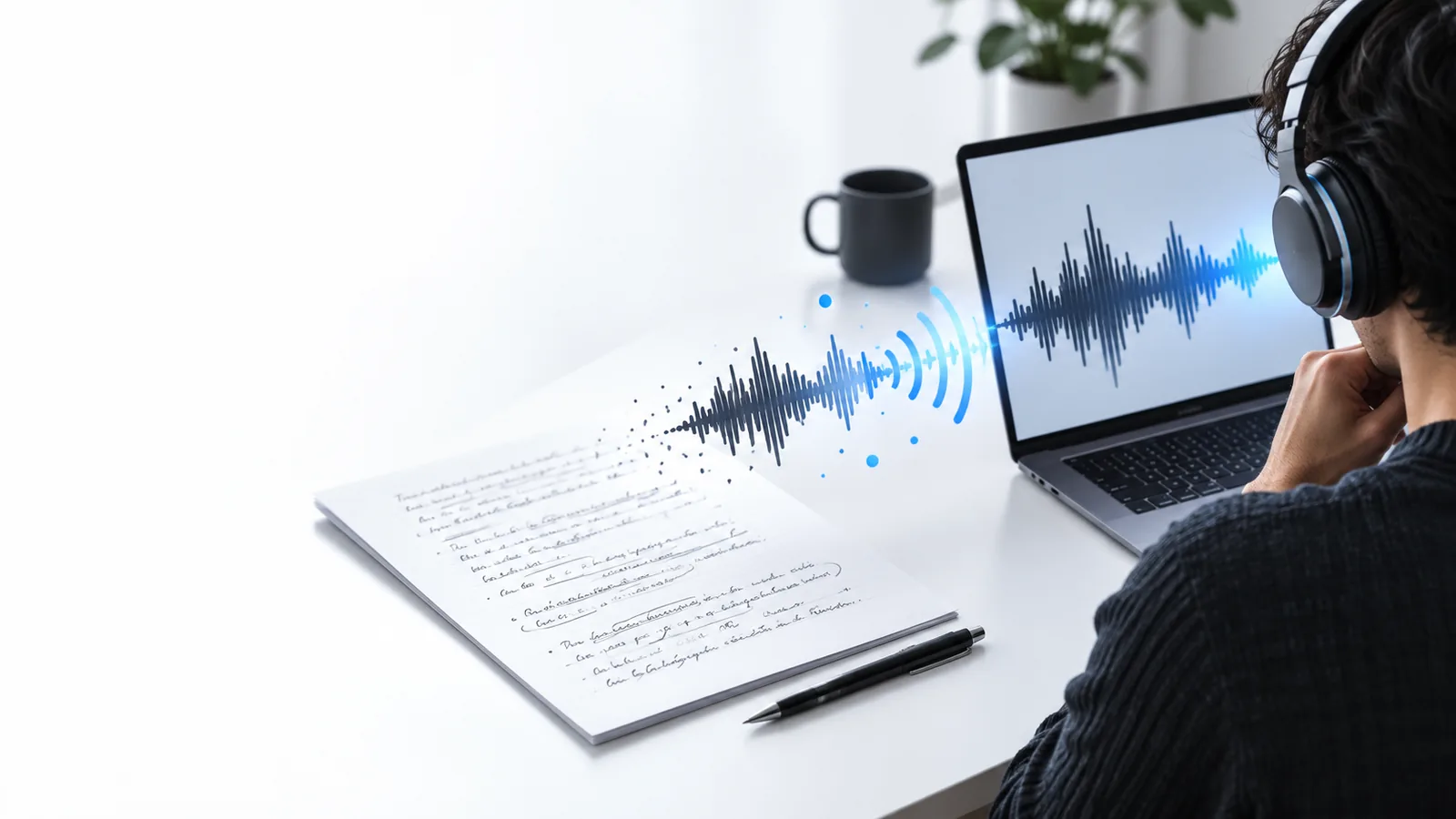
The goal is simple: turn a finished script into speech you can review and, if the chosen tool offers it, save as an MP3.
A script, a voice rendering, and a file export are separate stages. A good result at one stage does not guarantee the next.
Ttsmp3 cannot infer every intended reading of names, abbreviations, or unfamiliar terms from a script alone.
WorkaroundSpell difficult words phonetically where appropriate, then listen to the complete result.
Hearing speech in a player does not establish that an MP3 download is available through the selected service.
WorkaroundConfirm the actual export choices before planning delivery around an MP3.
Even a saved recording may contain rushed pauses, awkward emphasis, or a word omitted from the source text.
WorkaroundReplay the saved file against your script and revise the wording if needed.
Keep the first attempt short. Small tests make pronunciation and export problems easier to spot before a longer recording.
Put the most important information first. Replace dense punctuation with short sentences, and write out any abbreviation that a voice might read incorrectly.
Send a short passage to a voice tool, then listen from start to finish. Check names, numbers, pacing, and whether the tone suits the audience.
Look at the offered download format before saving. If MP3 is available, open the resulting file and check that its content matches the revised script.
The two sides serve different purposes. Keep the source script so you can correct errors without trying to edit them out of a recording.
Source text
Written words
MP3 recording
Encoded audio
Source text
Edit the words directly
MP3 recording
Revise the source and render again
Source text
Not audible
MP3 recording
Audible and worth checking
Source text
Depends on the eventual reading
MP3 recording
Fixed in the saved recording
Source text
Proofread spelling and clarity
MP3 recording
Listen for pacing and missing words
Source text
Useful for copying and editing
MP3 recording
Useful where MP3 playback is supported
Bring a short, proofread passage to the voice tool. Listen critically, then check its available download formats before treating the result as an MP3 deliverable.
Write a short script and use a speech-generation tool to render it aloud. Review the playback, then check whether that tool offers an MP3 download; a playable preview alone is not a saved file.
Speech tools interpret punctuation, abbreviations, and unfamiliar names, so the reading may differ from your intention. Revise the script, test a short passage again, and listen before saving another recording.
You can edit the source text, but changing words inside a finished recording is a different task. For a clean correction, update the script and generate a new audio version.
Do not assume a download format from this guide or from a voice preview. Check the export options in the tool you use, then open the saved file to verify its format and content.